 By admin
Terms and Conditions explain the rules visitors must follow when using your website, products, or services. They can help clarify user responsibilities, payment terms, content ownership, and other important website policies.
For WordPress website owners, adding a clear Terms and Conditions page makes important information easier for visitors to find.
In this guide, we will explain what Terms and Conditions are, why your website may need them, and how to create and publish a Terms and Conditions page using the Legal Pages plugin.
What Are Terms and Conditions?
Terms and Conditions, also called Terms of Service or Terms of Use, are rules that explain how visitors can use a website, product, or service.
They usually describe the relationship between the website owner and its users. The content depends on the type of website, the services offered, and the activities users can perform.
A Terms and Conditions page may include:
- Website usage rules: Explains how visitors can use the website.
- User responsibilities: Describes what users can and cannot do.
- Payment and refund terms: Explains payment conditions, cancellations, and refunds when relevant.
- Intellectual property: Covers ownership of website content, images, logos, and other materials.
- Account requirements: Explains rules for creating and using user accounts.
- Limitation of liability: Describes certain limits on the website owner’s responsibility.
- Termination rules: Explains when access to an account or service may be restricted or removed.
The content should be written according to your website’s actual services and business requirements. A generic template may need changes before publication.
Why Does Your WordPress Website Need Terms and Conditions?
Not every website needs the same terms. However, a Terms and Conditions page can be useful for websites that sell products, offer services, collect user registrations, or allow visitors to submit content.
Here are some reasons to consider adding one.
1. Explain Website Rules Clearly
Terms and Conditions help visitors understand how they are allowed to use your website. For example, you can explain rules related to account creation, content submission, or restricted activities.
2. Set Clear User Responsibilities
If your website allows users to create accounts, purchase products, or submit information, the terms can explain their responsibilities.
This helps users understand what is expected when they use your website or services.
3. Explain Payments and Refunds
For eCommerce websites, membership platforms, and service-based businesses, clear payment and refund terms can help reduce confusion.
You can explain pricing conditions, cancellations, renewals, refunds, and other relevant payment details.
4. Protect Your Website Content
Your Terms and Conditions can include information about the use of your website content, such as written content, images, graphics, and downloadable materials.
The specific wording should match your business and applicable legal requirements.
5. Build Trust With Visitors
A clearly written Terms and Conditions page shows visitors that your website has defined rules and policies. It also makes important information easier to access before users purchase a product or use a service.
Important: A Terms and Conditions page does not automatically make a website legally compliant or guarantee legal protection. Consider consulting a qualified legal professional when your website has specific legal or business requirements.
How to Add Terms and Conditions to a WordPress Website
You can create a Terms and Conditions page manually in WordPress or use a plugin such as Legal Pages to start with a ready-made template.
The following steps explain how to create and manage a Terms and Conditions page using the Legal Pages plugin.
Step 1: Add Your Website or Business Information
Legal Pages allows you to manage general website or business information through its settings.
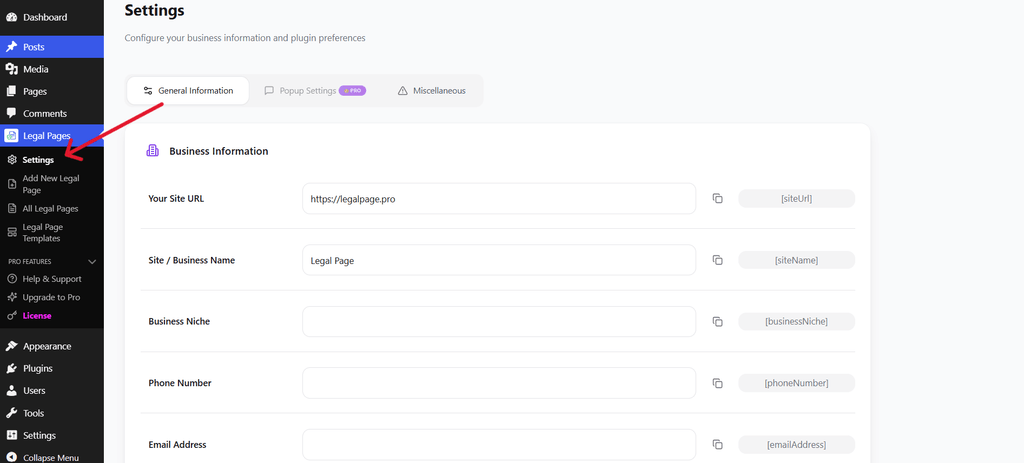
Open the relevant settings area and enter accurate details about your business or website.
Add Website and Business Information
Depending on your website, you may need to provide details such as:
- Website name
- Business name
- Website URL
- Business contact information
- Other general details used in your legal pages
Using accurate information helps keep your legal documents consistent.
Step 2: Add Your Address Information
If your Terms and Conditions template requires business address details, add the correct information through the available settings.
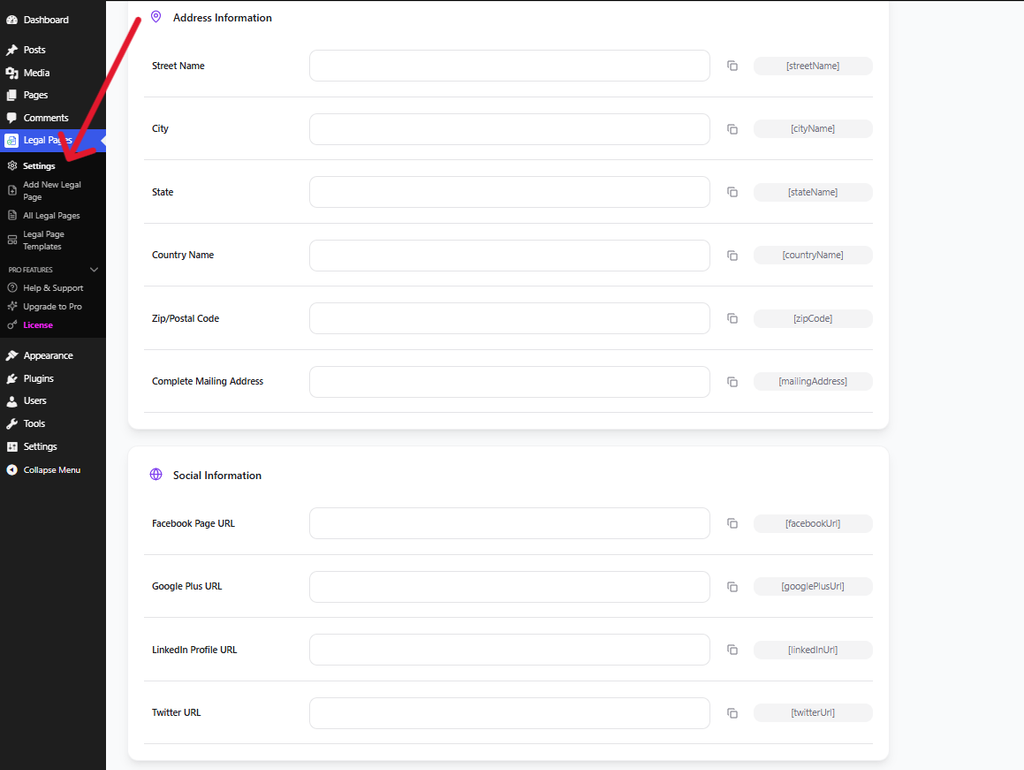
Add Address Information
Make sure the information is accurate and relevant to your business. Do not add an address that does not belong to your organization or business operation.
The information required may depend on your location, business type, and legal obligations.
Step 3: Open the Legal Pages Plugin
First, log in to your WordPress dashboard.
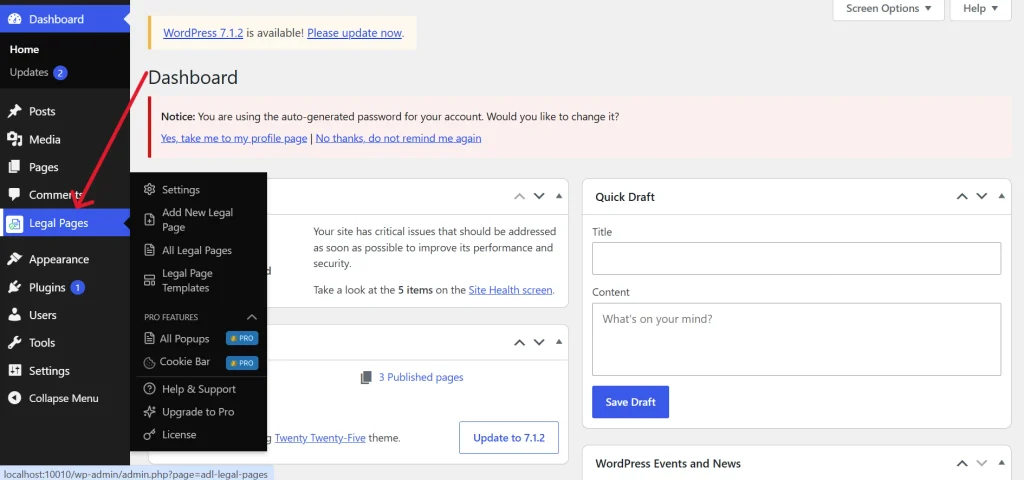
From the dashboard, go to:
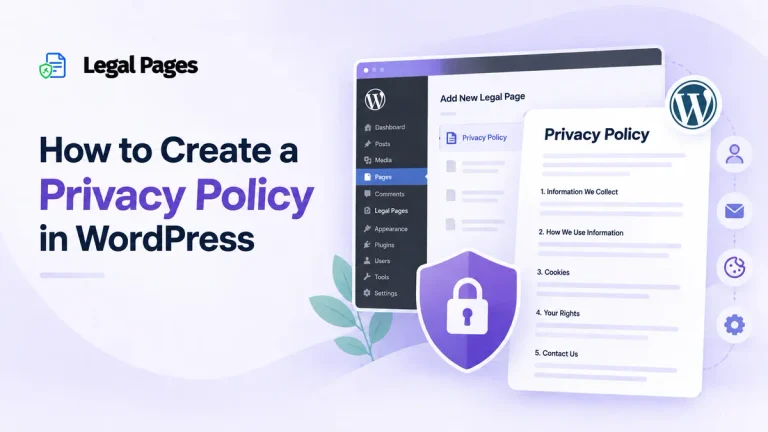
Legal Pages → Add New Legal Page
This will open the page where you can create a new legal document.
Open Add New Legal Page
The available options may vary depending on your plugin version and installed features.
Step 4: Select a Terms and Conditions Template
After opening the creation page, you can select a suitable legal page template.
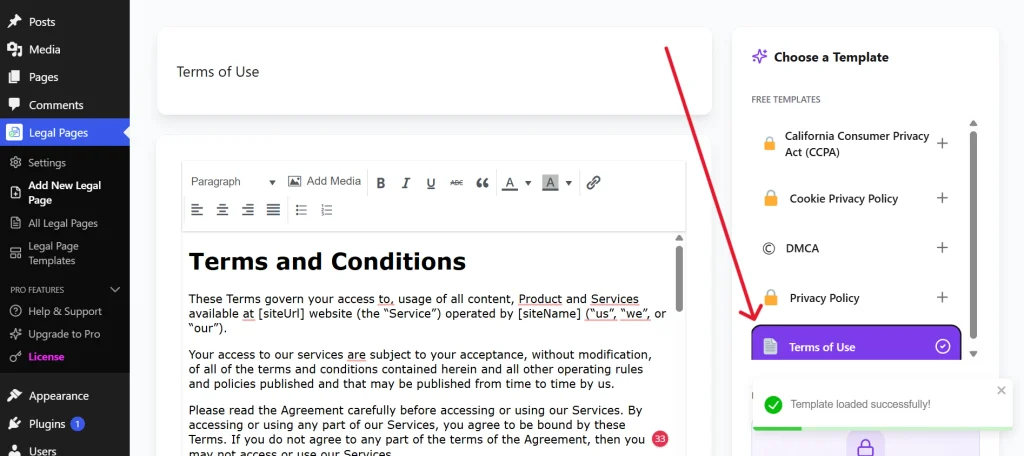
Look for a template related to:
- Terms and Conditions
- Terms of Use
- Terms of Service
The exact template name may vary. Choose the option that best matches the purpose of your website.
Select a Legal Page Template
Using a template can help you begin with a basic structure instead of writing every section from the beginning. However, you should review and customize the content before publishing it.
Step 5: Edit the Terms and Conditions Content
After selecting the template, open the content editor.
Review the available sections and update them according to your website. Depending on your business, you may need to add information about:
- Your business or website name
- Website usage rules
- Products or services
- Payments and refunds
- User accounts
- Intellectual property
- Contact information
- Governing law, where applicable
Edit the Legal Page Content
Avoid publishing a template without reviewing it. Remove sections that do not apply to your website and add information that visitors need to understand.
Step 6: Review and Publish the Page
After editing the content and adding the necessary information, review the complete document.
Check the following:
- Is the business name correct?
- Are the website URL and contact details accurate?
- Do the rules match your actual services?
- Are payment and refund details correct?
- Have you removed irrelevant template sections?
- Is the content easy for visitors to understand?
Once the content is ready, save or publish the page according to your WordPress workflow.
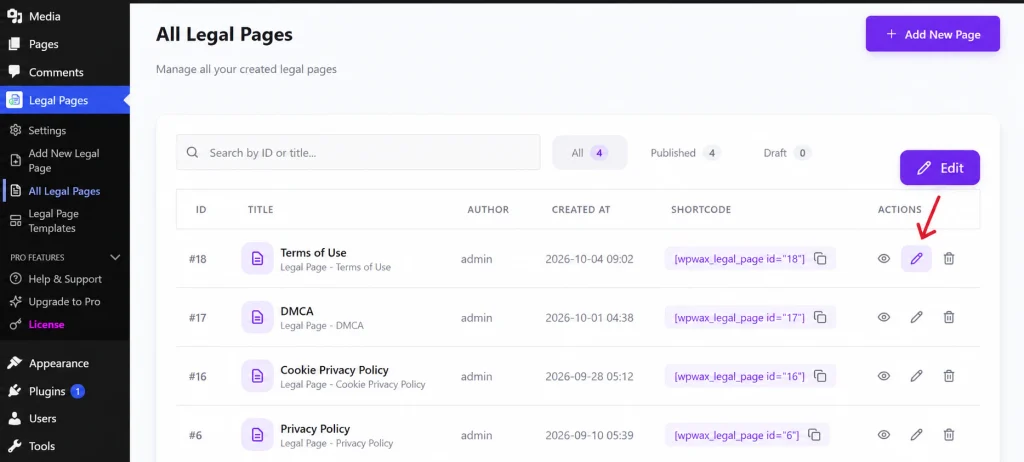
You can manage your created legal pages from the Legal Pages section in your dashboard.
Manage Created Legal Pages
Where Should You Add Your Terms and Conditions Link?
After publishing the page, make it easy for visitors to find.
You can add the Terms and Conditions link to:
- Website footer: A common location for legal page links.
- Checkout page: Useful for websites that sell products or services.
- Registration form: Helpful when users create accounts.
- Membership signup page: Allows users to review the terms before joining.
- Navigation menu: Suitable when legal information needs to be easily accessible.
- Relevant buttons or forms: Useful when users submit information or accept specific conditions.
If users must agree to certain terms before completing an action, make sure the agreement process is clear and appropriate for your website.
Common Mistakes to Avoid
1. Copying Terms From Another Website
Avoid copying another website’s Terms and Conditions without reviewing them. Another business may have different services, policies, and legal requirements.
2. Using a Template Without Editing It
Templates provide a starting point, but they may include sections that do not apply to your business. Review and customize every relevant section.
3. Adding Incorrect Business Information
Incorrect company names, addresses, email addresses, or website URLs can make your legal page confusing and unreliable.
4. Hiding the Terms and Conditions Page
Visitors should be able to find your terms easily. Add a visible link in an appropriate location, such as the website footer or checkout page.
5. Forgetting to Update the Page
Your Terms and Conditions may need updates when you change your services, pricing, payment methods, or website features. Review the content whenever your business operations change.
Conclusion
Adding Terms and Conditions to your WordPress website helps explain website rules, user responsibilities, payment terms, and other important conditions. The content should match your business activities and the needs of your visitors.
With the Legal Pages plugin, you can start with a suitable template, customize the content, add your website information, and publish the page through WordPress. Always review the final document carefully and seek professional legal advice when necessary.