 By admin
Making a WordPress website legally compliant involves more than adding legal pages. Website owners should review privacy practices, user agreements, cookies, accessibility, and business requirements.
The rules that apply depend on the website’s location, audience, services, and data collection activities.
In this guide, we will explain the key steps to improve your website’s legal readiness and show how to create and manage legal pages using Legal Pages.
Important: No plugin can guarantee complete legal compliance. Legal Pages can help you create and manage legal documents, but you are responsible for reviewing your website’s requirements and keeping its information accurate.
What Does Legal Compliance Mean for a WordPress Website?
Legal compliance means following the laws and regulations that apply to your website, business, and visitors.
The requirements are not the same for every website. For example, an online store may need to explain its payment and refund policies, while a blog that collects email addresses may need to provide clear information about personal data collection.
Depending on your website, legal considerations may include:
- Privacy and personal data protection
- Terms and Conditions
- Cookie usage and consent
- Consumer protection
- Copyright and content ownership
- Website accessibility
- Industry-specific requirements
Your website may need to follow specific laws based on where your business operates and where your users are located.
Why Should You Make Your WordPress Website Legally Compliant?
1. Protect User Privacy
If your website collects names, email addresses, phone numbers, IP addresses, or other personal information, you should explain how that information is collected and used.
A Privacy Policy should accurately describe your data practices, including relevant third-party tools such as analytics, contact forms, and email marketing services. WordPress also recommends reviewing and updating privacy information based on the actual tools used on your website.
2. Explain Website Rules
Terms and Conditions help explain how visitors can use your website, products, or services.
They may include information about:
- User responsibilities
- Account usage
- Payments and refunds
- Intellectual property
- Service restrictions
- Termination conditions
The content should match your actual business operations.
3. Manage Cookie and Tracking Information
Your website may use cookies for analytics, login functionality, advertising, or other purposes.
You should review the cookies and tracking technologies used by your website and provide the notices or consent options required by applicable laws. The exact requirements depend on the type of data processing and the relevant regulations.
4. Improve Website Accessibility
Accessibility helps people with disabilities use your website. Important areas to review include keyboard navigation, color contrast, image alternative text, readable content, and accessible forms.
Accessibility obligations depend on the type of organization, location, and services provided. For example, the U.S. Department of Justice explains that inaccessible websites can prevent people with disabilities from accessing services provided by businesses open to the public.
5. Build Trust With Visitors
Clear legal information helps visitors understand how your website operates. It also makes important policies easier to find before users submit information, purchase products, or sign up for a service.
How to Make Your WordPress Website Legally Compliant
You can follow the steps below to review your website’s legal requirements and create relevant legal pages using Legal Pages.
Step 1: Review Your Website’s Data Collection
Before creating a Privacy Policy, identify how your website collects and processes personal information.
Review the following:
- Contact forms
- Newsletter signup forms
- User registration
- Website analytics
- Advertising tools
- Comments
- Payment services
- Third-party integrations
WordPress’s Privacy Policy Editing Helper can provide starter information from WordPress core, themes, and participating plugins. However, it may not identify every external service used on your website, so you should review your tools separately.
Step 2: Add Your Website and Business Information
Open the relevant Legal Pages settings and enter your website or business details.
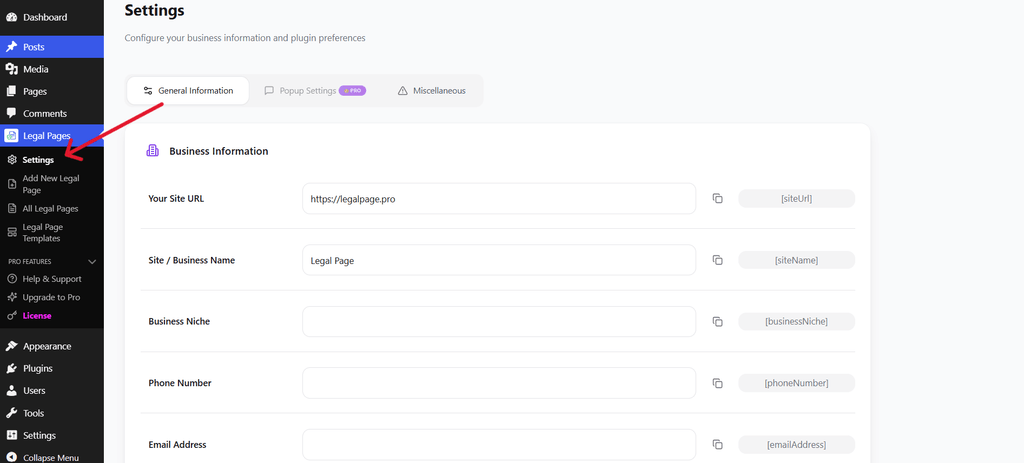
Website and Business Information Settings
Depending on the available settings, you may need to add:
- Website name
- Business name
- Website URL
- Contact details
- Other general information
Use accurate information so that your legal documents remain consistent.
Step 3: Add Your Address Details
If your legal page template requires business address information, enter the correct details in the relevant settings area.
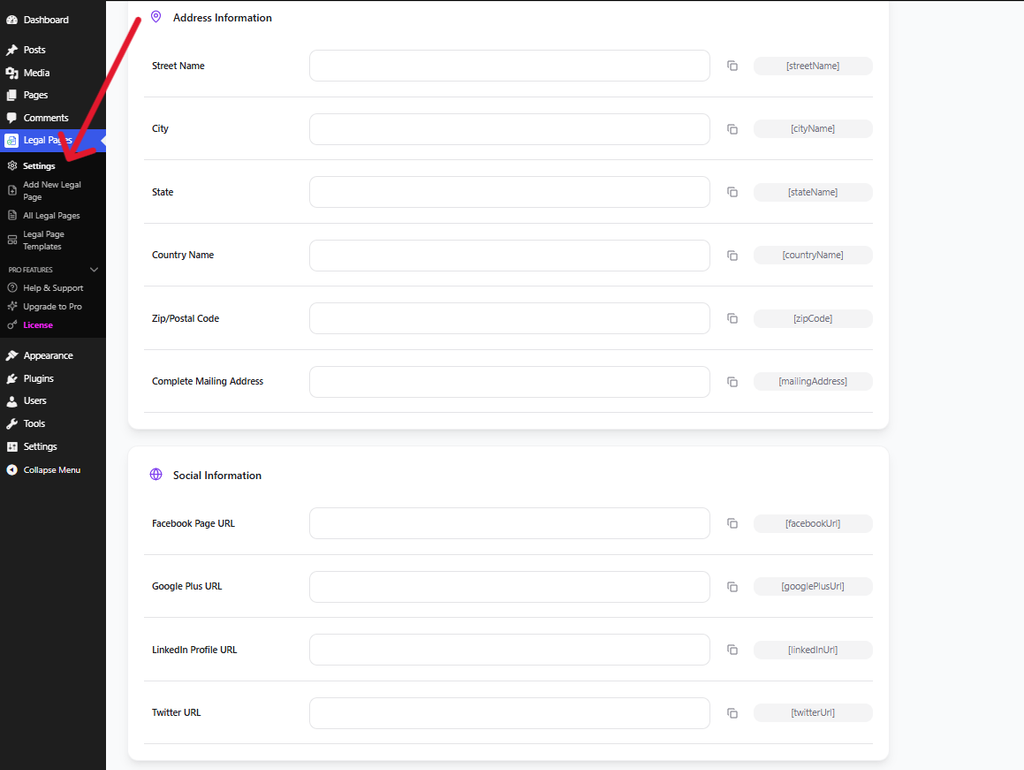
Address Information Settings
Review the information carefully before using it in your legal pages. The address and business details should reflect your actual organization and applicable requirements.
Step 4: Open Legal Pages in WordPress
Log in to your WordPress dashboard and go to:
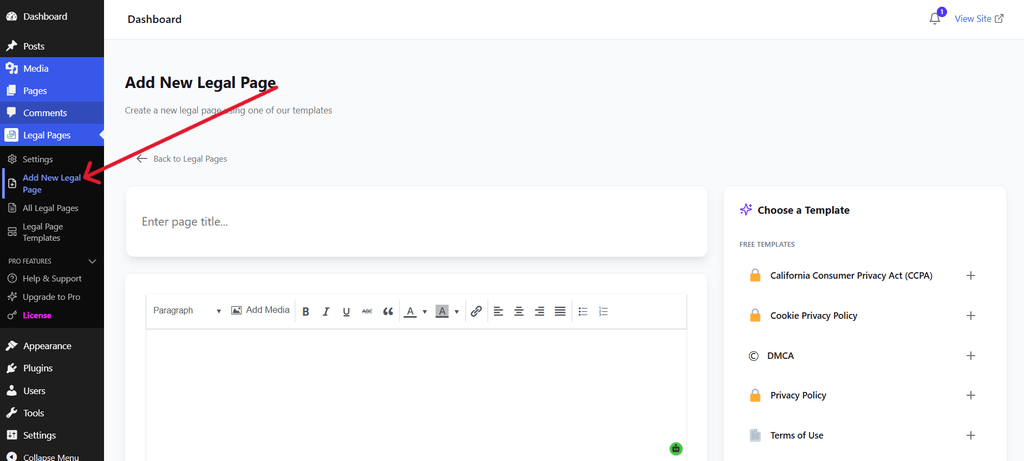
Legal Pages → Add New Legal Page
This opens the area where you can create a new legal document.
The available options may vary depending on your plugin version and installed features.
Step 5: Choose the Required Legal Page Templates
Select the legal page template that matches your website’s needs.
Depending on your website, you may need templates such as:
- Privacy Policy
- Terms and Conditions
- Cookie Policy
- Disclaimer
- Refund Policy
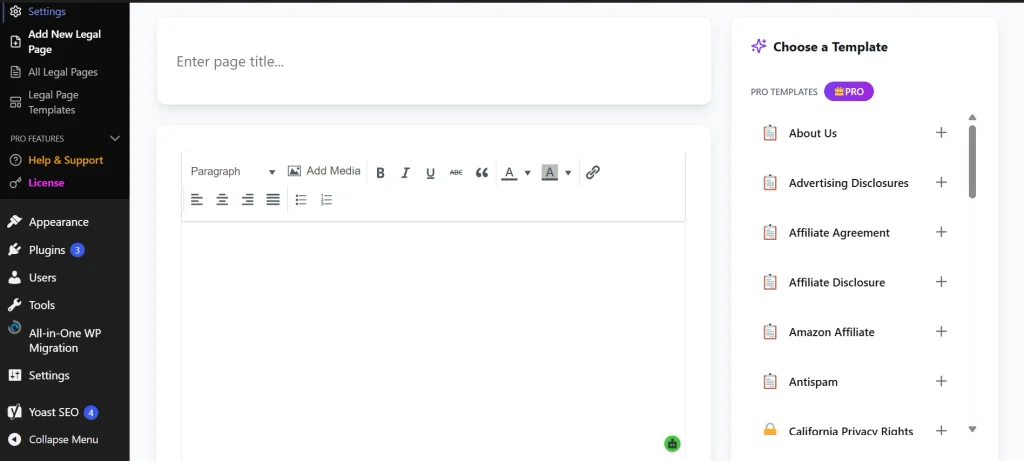
Select a Legal Page Template
The screenshot shows the template selection workflow. Select the relevant template and customize its content before publishing.
Do not create every legal page automatically without reviewing whether it applies to your website. Your requirements depend on your business activities and applicable laws.
Step 6: Edit and Customize the Legal Page
After selecting a template, review the content in the editor.
Update the information based on your website, including:
- Business or website name
- Contact information
- Services or products
- Data collection practices
- Payment and refund rules
- User responsibilities
- Relevant third-party services
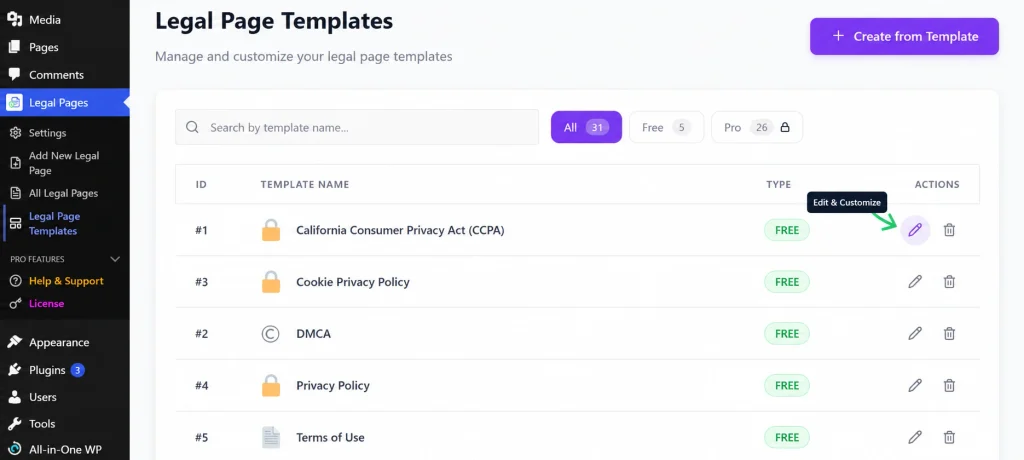
Edit Legal Page Content
Templates provide a starting point, but they may contain information that does not match your business. Remove irrelevant sections and add the details necessary for your website.
Step 7: Review and Manage Your Legal Pages
After creating your legal documents, review the content before publishing.
Check whether:
- Your business information is accurate.
- The legal pages match your website’s services.
- Your Privacy Policy reflects the tools you actually use.
- Payment and refund details are correct.
- The pages are easy to read.
- Visitors can find the pages easily.
You can manage your created legal pages from the Legal Pages section in your WordPress dashboard.
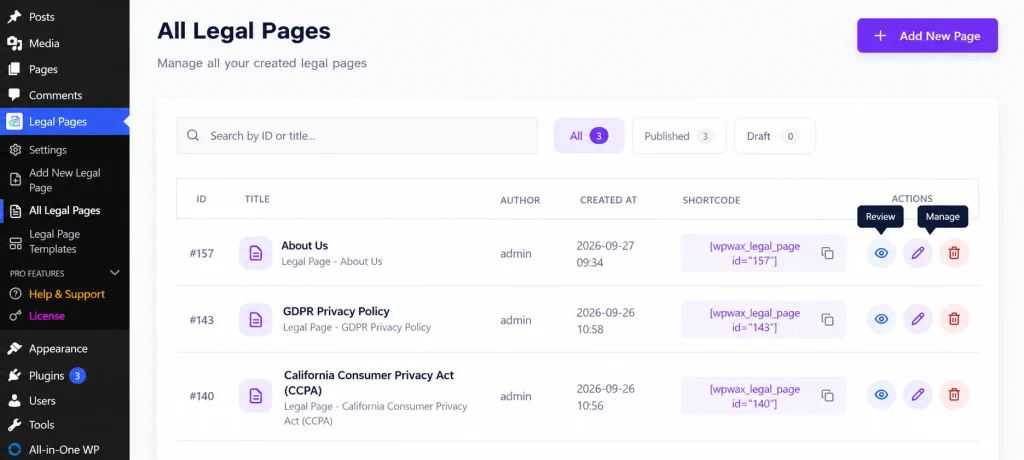
Manage Legal Pages
Other Steps to Improve Legal Readiness
Creating legal pages is only one part of the process. You should also review the following areas.
Review Your Website Forms
Check whether your contact, registration, and newsletter forms collect personal information. Explain the purpose of data collection and include consent options where required.
Check Your Website Cookies
Identify cookies used by WordPress, your theme, plugins, analytics tools, and advertising services. Make sure your cookie notice and consent process match your actual cookie usage.
Add Legal Page Links
Add links to relevant legal pages in locations such as:
- Website footer
- Checkout page
- Registration form
- Membership signup page
- Contact forms
- Navigation menu
Keep Your Content Updated
Review your legal pages whenever you change your services, plugins, tracking tools, payment methods, or data collection practices.
Legal compliance is an ongoing process rather than a one-time setup. WordPress also recommends keeping privacy information current and reviewing changes to applicable regulations.
Common Mistakes to Avoid
1. Assuming a Plugin Guarantees Compliance
A plugin can help create legal pages and support your compliance process, but it cannot guarantee that your website meets every legal requirement.
2. Using Generic Content Without Reviewing It
Templates may not reflect your actual business activities. Always customize the content and remove information that does not apply.
3. Ignoring Third-Party Tools
Analytics, advertising, email marketing, payment, and embedded services may collect or process user information. Include relevant practices in your privacy review.
4. Hiding Legal Information
Make your legal pages easy to find. Visitors should not have to search through multiple pages to locate important policies.
5. Not Reviewing Accessibility
Check whether users can navigate your website with a keyboard, understand your content, access form fields, and read text with sufficient contrast.
6. Failing to Update Legal Pages
Your legal documents should reflect changes to your website, business, services, and data practices.
Conclusion
Making your WordPress website legally compliant requires more than creating a Privacy Policy or Terms and Conditions page. You should review your data collection, cookies, website accessibility, business policies, and other requirements that apply to your website.
The Legal Pages plugin can help you create and manage relevant legal documents using templates and WordPress settings. However, you should review the content carefully, keep it updated, and consult a qualified legal professional when specific legal advice is needed.